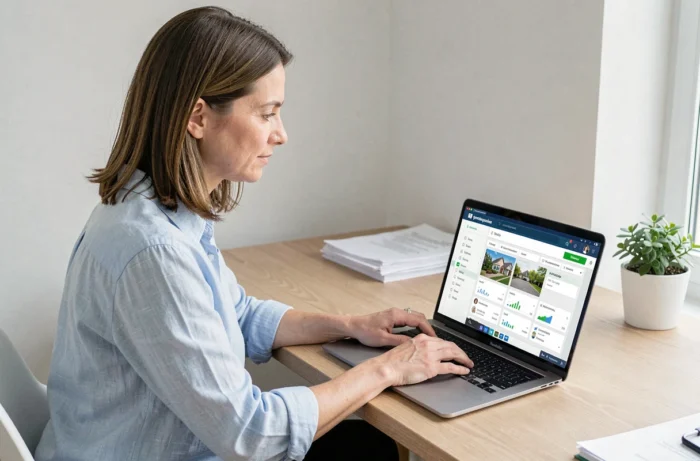
MyFoncia is based on a two-step connection architecture that many users confuse with a simple username/password pair. The portal distinguishes between a first connection identifier (provided by the agency on a paper document or a welcome email) and the final identifiers created later by the user. Confusing these two steps generates the majority of the blocks reported to Foncia’s customer services.
MyFoncia Authentication Mechanism and Technical Friction Points
The first connection identifier is a temporary one-time code. Once entered on the login page, the system sends a confirmation email to the address linked to the file. As long as this confirmation is not validated, the account remains in an intermediate state that prevents any reconnection.
We observe that most first connection failures come from three specific situations:
- The email address registered in the agency’s file is outdated or contains a typo, preventing the receipt of the confirmation link.
- The confirmation link lands in the spam or junk folder, especially with email providers that aggressively filter transactional emails.
- The first connection code has already been used (sometimes mistakenly during a failed attempt), and the system considers it consumed without the account being actually active.
In these three cases, only the customer service of the local agency can reset the procedure. The online password recovery form only applies to accounts that have already been activated, not to accounts that remain in an intermediate state.
For those looking for a detailed guide on the procedure, it is possible to log in to the MyFoncia client area by following the documented steps with screenshots.
MyFoncia Mobile App: Notifications and Claims Reporting
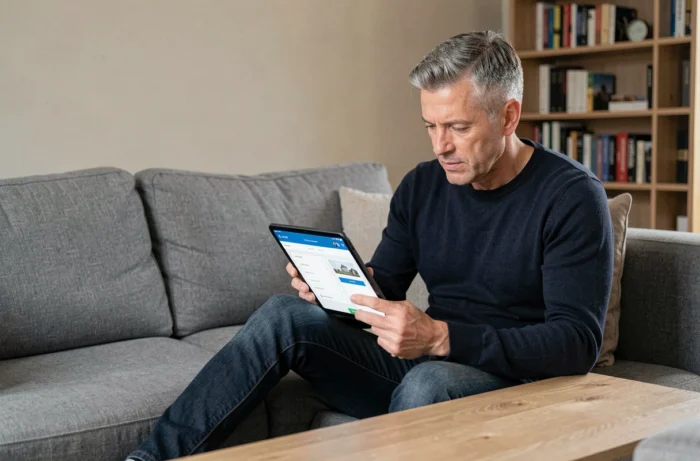
The mobile app is not just a mirror of the web portal. It includes features that significantly change responsiveness in rental or condominium management.
Push notifications alert in real-time when a document is uploaded (rent receipt, fund request, general assembly minutes). This mechanism avoids repeated logins to check for the availability of a statement. On the web portal, you must log in manually to see the addition of a new document.
The other differentiating point concerns claims reporting. The app allows you to take a photo directly from the interface and attach it to a request for intervention. This integrated flow speeds up handling compared to an email sent to the agency, because the request arrives structured in Foncia’s internal management system with the property’s metadata already pre-filled.
Limitations of the Mobile Version
Some operations remain inaccessible from the app. Bulk downloading of accounting documents, for example, requires the web portal. Access to archives prior to the last fiscal year may also be truncated on mobile depending on the volume of the file.
MyFoncia Portal or Physical Agency: Which Channel for Which Need
We recommend a clear division of uses between the platform and the agency. All routine management is done through MyFoncia: consultation of receipts, tracking of fund requests, downloading of documents, online rent payment. The interface centralizes these operations without time constraints.
On the other hand, administrative anomalies must be handled at the agency. This includes file inconsistencies (incorrect amount on a fund request, incorrect accounting allocation), identity verifications after a change of owner, or disputes requiring a contradictory exchange with a manager.
The boundary is clear: if the portal displays information that you can simply consult or download, stay on MyFoncia. If the displayed information seems incorrect or if your request involves a modification of your client file, go through the agency.
Securing the MyFoncia Account and Managing Identifiers
The MyFoncia portal does not yet offer two-factor authentication (2FA) in the strict sense. Security relies on the password chosen during activation and on email verification in case of a reset.
Three precautions are necessary for owners and co-owners managing multiple lots:
- Use a unique password, distinct from that of the email associated with the account, to limit the impact of a cross-compromise.
- Regularly check that the email address linked to the file is still active, especially after changing email providers.
- Never share the first connection identifier with a third party, even a co-owner: each person must have their own access through the agency.
In case of suspected unauthorized access, changing the password from the portal takes effect immediately. Active sessions on other devices are not automatically logged out, which means you must also manually log out of the mobile app if the phone has been compromised.
Sensitive Documents and Archiving
Documents uploaded to MyFoncia (receipts, charge statements, AG minutes) remain accessible as long as the management mandate is active. After termination of the mandate or sale of the property, access to archives may be cut off without notice. We recommend systematically downloading important documents locally rather than relying on the permanence of the online space.
The MyFoncia portal fulfills its role as a daily management platform as long as its technical limits are understood. Mastering the distinction between first connection and regular connection, leveraging mobile notifications, and knowing when to switch to the physical agency covers almost all situations encountered by tenants, owners, and co-owners.